NEED ASSISTANCE? PLEASE REACH OUT TO US: CONTACT@AWARECX.COM

Integrations & Data Management
Learn how AwareCX connects with your existing systems and how to manage customer data securely through imports, API triggers, and webhooks.
AwareCX supports several ways to bring in data, automate survey delivery, and keep your customer records aligned with your existing systems. This section explains how imports, API triggers, filters, webhooks, and key management work within the platform.
CSV & XLSX Imports
AwareCX includes a guided Import Wizard for bulk-loading contacts and accounts from spreadsheet files.
Supported File Formats
CSV (.csv)
Excel (.xlsx)
Import Wizard Steps
Upload
Drag and drop your file or select it from your device.
AwareCX reads the headers and automatically previews the first rows.
Map Columns
Each column in your file is matched to an AwareCX field.
The system auto-detects common column names such as:
Email
Full Name
Phone
You can also map columns to custom fields or skip them entirely.
Validation Summary
AwareCX validates every row before import.
You will see counts for:
Valid rows
Rows with warnings
Rows with errors
Examples:
Warning: missing optional fields
Error: missing or invalid email address
Only valid rows proceed to import.
Import Results
After the import completes, AwareCX displays a summary showing:
Contacts created
Contacts updated
Contacts skipped
Accounts created
Standard Import Fields
Email
Required: Yes
Description: Contact's email address. This is the primary identifier.
Contact Name
Required: No
Description: Display name for the contact.
Phone Number
Required: No
Description: Used for SMS survey delivery.
Account Name
Required: No
Description: Associates the contact with an account. The account is created automatically if it does not already exist.
Account External ID
Required: No
Description: Your CRM's account identifier, used for matching.
Contact External ID
Required: No
Description: Your CRM's contact identifier, used for matching.
Any columns not mapped to standard fields can be mapped as custom fields.
Custom fields are stored per contact and can later be used to filter survey recipients.
Tip:
If you re-import a file containing existing contacts, matched by email, AwareCX updates their records instead of creating duplicates.
Ingest API (Survey & Assessment Triggers)
The Ingest API allows you to trigger surveys and assessments automatically from external systems such as your CRM, helpdesk, or service platform.
This removes the need for manual sending.
How It Works
Generate an API key in Settings → API Keys.
Each key can be labeled and revoked independently.Send a POST request to the Ingest endpoint.
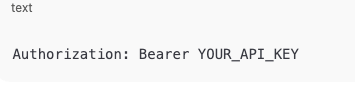
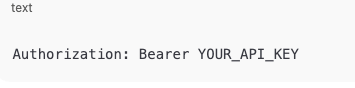
Include your API key in the Authorization header.AwareCX automatically:
Creates or updates the contact
Creates or updates the account
Applies cooldown and suppression rules
Optionally sends the survey or assessment immediately
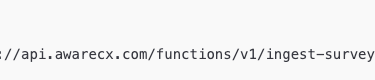
Endpoint
POST https://api.awarecx.com/functions/v1/ingest-survey-trigger
Authentication
Authorization: Bearer YOUR_API_KEY
Targeting a Survey or Assessment
Use one of the following options:
survey_type: "nps" or "csat"
Automatically resolves to your latest active transactional survey of that type.
survey_id
Targets a specific survey by UUID.
assessment_id
Targets a specific assessment by UUID.
Tip:
You can find any Survey ID or Assessment ID on its detail page.
Click the ID badge next to the title to copy it.
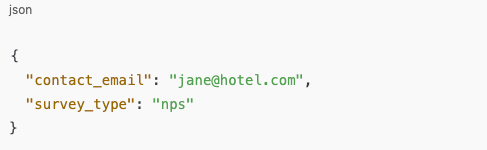
Minimal Payload Example (Survey)
{"contact_email": "jane@hotel.com", "survey_type": "nps"}
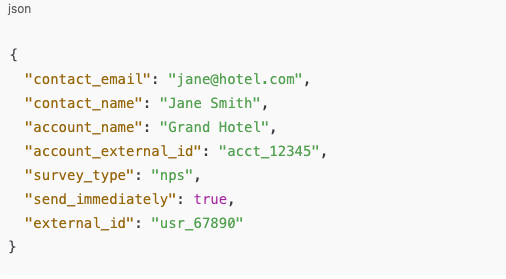
Full Payload Example (Survey)
{"contact_email": "jane@hotel.com", "contact_name": "Jane Smith", "account_name": "Grand Hotel", "account_external_id": "acct_12345", "survey_type": "nps", "send_immediately": true, "external_id": "usr_67890"}
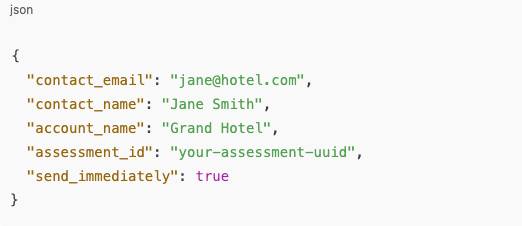
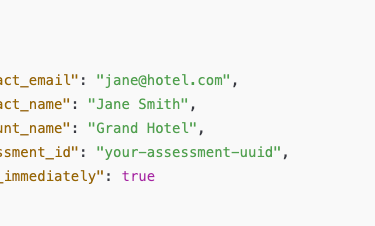
Assessment Payload Example
{ "contact_email": "jane@hotel.com", "contact_name": "Jane Smith", "account_name": "Grand Hotel", "assessment_id": "your-assessment-uuid", "send_immediately": true }
Payload Field Reference
contact_email
Type: string
Required: Yes
Description: Recipient's email address
contact_name
Type: string
Required: No
Description: Recipient's display name
account_name
Type: string
Required: No
Description: Property or account name. Created if new.
account_external_id
Type: string
Required: No
Description: Your system's ID for the account, used for matching
survey_id
Type: string
Required: Conditional
Description: Target a specific survey by UUID
survey_type
Type: string
Required: Conditional
Description: Auto-resolve by type: "nps" or "csat"
assessment_id
Type: string
Required: Conditional
Description: Target a specific assessment by UUID
send_immediately
Type: boolean
Required: No
Description: Default is true. Set to false to queue without sending.
external_id
Type: string
Required: No
Description: Your system's ID for the contact
custom_field_filters
Type: array
Required: No
Description: Filter contacts by custom field values before adding
Note:
You must provide exactly one of the following:
survey_id
survey_type
assessment_id
You cannot combine survey and assessment fields in the same request.
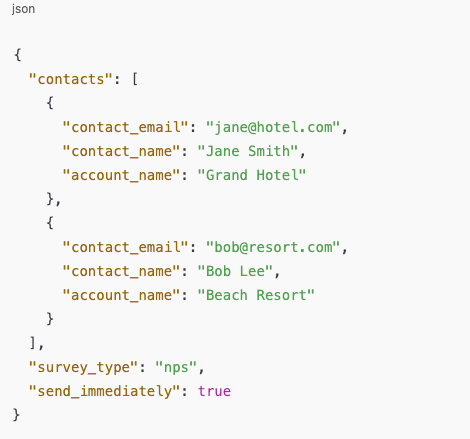
Batch Requests
The Ingest API supports batch processing for up to 200 contacts per request.
Wrap contacts in a contacts array and place shared configuration at the top level.
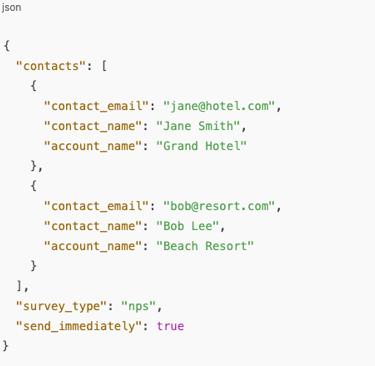
Batch Payload Example
{"contacts": [{"contact_email":"jane@hotel.com","contact_name": "Jane Smith","account_name": "Grand Hotel"},{"contact_email": "bob@resort.com", "contact_name": "Bob Lee","account_name": "Beach Resort"}],"survey_type": "nps","send_immediately": true}
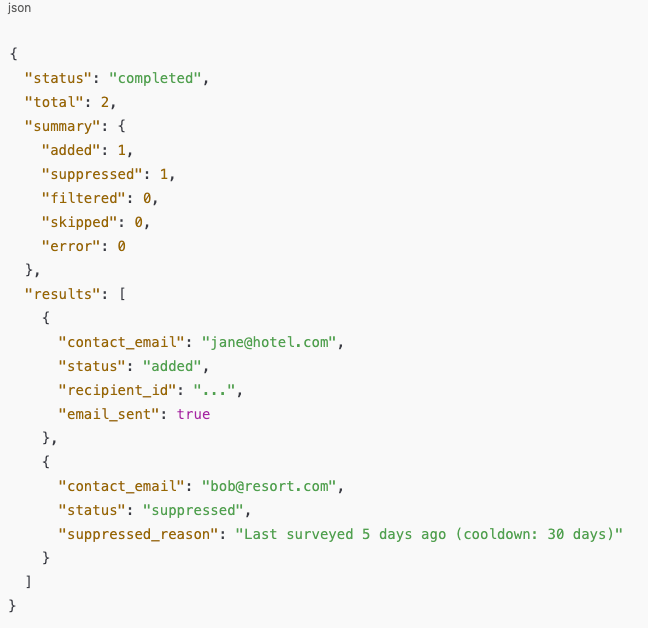
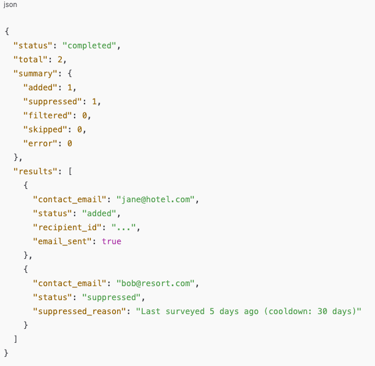
Batch Response Example
{"status": "completed", "total": 2, "summary": {"added": 1, "suppressed": 1, "filtered": 0, "skipped": 0, "error": 0}, "results": [{"contact_email": "jane@hotel.com", "status": "added", "recipient_id": "...", "email_sent": true}, {"contact_email": "bob@resort.com", "status": "suppressed", "suppressed_reason": "Last surveyed 5 days ago (cooldown: 30 days)"}]}
Each contact is processed independently.
One failure does not block the rest of the batch.
Custom Field Filters (API)
When triggering surveys or assessments through the API, you can filter contacts based on their custom field values before they are added as recipients.
This is useful for routing specific customer segments to specific surveys.
Filter Format
{"custom_field_filters": [{"field_name": "region", "mode": "exclude", "values": ["EMEA"]}, {"field_name": "property", "mode": "include", "values": ["Grand Hotel", "Park Inn"]}]}
Filter Modes
include
The contact must have a matching value to proceed.
exclude
The contact is filtered out if they have a matching value.
Filters are evaluated after the contact is created or updated, but before cooldown and recipient checks.
If a contact is filtered, the response returns:
status: "filtered"
A reason is also included in the response.
API Response Statuses
Every API call returns a status explaining what happened.
Status Meanings
added
The contact was added as a recipient and, if send_immediately is true, the email was sent.
suppressed
The contact is within the cooldown window and was not added.
The response includes the suppression reason.
filtered
The contact was excluded by custom field filters.
skipped
The contact is already a recipient for the survey or assessment.
error
Something went wrong. The error message explains the issue.
HTTP Error Codes
400
Bad request. Missing or invalid fields.
401
Unauthorized. Missing or invalid API key.
403
Forbidden. The feature is not available on your plan.
404
Not found. No active survey matches the provided type or ID.
500
Server error.
Webhooks (Delivery Tracking)
AwareCX automatically tracks email and SMS delivery events through inbound webhooks from its delivery providers.
You do not need to configure these webhooks yourself.
Email Delivery Events Tracked
Delivered
The email was successfully delivered to the recipient's inbox.
Bounced
The email could not be delivered.
Examples include an invalid address or full inbox.
Complained
The recipient marked the email as spam.
SMS Delivery Events Tracked
AwareCX also tracks:
SMS delivery confirmations
SMS delivery failures
These events are stored in AwareCX and displayed in the send detail view so you can monitor deliverability for each campaign.
API Key Management
API keys are managed in Settings → API Keys.
Key Features
Labeled Keys
Give each key a descriptive name, such as:
Zendesk Production
Zapier Integration
This helps track usage by system or workflow.
Prefix Visibility
After creation, only the key prefix is shown.
The full key is displayed once, at creation time, so copy it immediately.
Revocation
Keys can be revoked at any time.
Revocation is immediate and permanent.
Any external system using that key will stop authenticating.
Last Used Tracking
Each key shows when it was last used.
This helps identify unused keys for cleanup.
Important:
Store API keys securely.
A key is shown only once when created.
If it is lost, revoke the old key and create a new one.
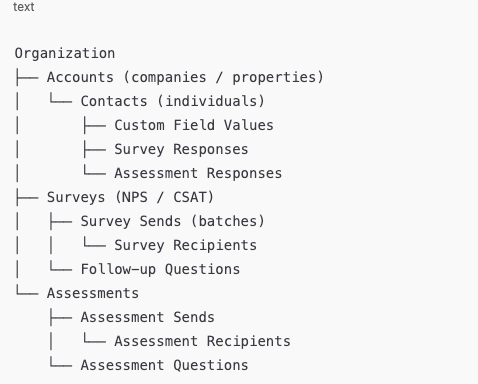
Data Structure Overview
AwareCX organizes data in a clear hierarchy.
Structure
Key Relationships
Every record belongs to an Organization
This provides complete data isolation between tenants.
Contacts are identified by email address within an organization
This is the primary matching method for contact records.
Accounts are optional but recommended
They enable account-level analytics and risk scoring.
External IDs on contacts and accounts
These allow you to maintain references to your CRM or service management platform.
Custom Fields are defined per organization
They can store any text value per contact, enabling flexible segmentation.
Tip:
When importing or triggering through the API, providing account_name or account_external_id automatically creates and associates the account.
You do not need to create accounts in advance.



Net Promoter®, NPS®, and the NPS-related emoticons are registered trademarks of Bain & Company, Inc., Satmetrix Systems, Inc., and Fred Reichheld.
AwareCx is a product of Elevate Everywhere Enterprises, LLC
© 2026 Elevate Everywhere Enterprises, LLC. All rights reserved.